Few digital disasters are more devastating than experiencing a sudden hardware crash, malware infection, or accidental file deletion that permanently erases years of family photos, financial records, work documents, and creative projects. While modern Solid State Drives (SSDs) and operating systems are remarkably resilient, electronic hardware can fail without warning. Learning how to back up your windows pc using automated, background scheduling safeguards your digital life against irreversible data loss.
Microsoft Windows 11 and Windows 10 include robust built-in backup engines designed to protect both localized files and comprehensive operating system states. By combining encrypted cloud repositories with high-speed physical storage drives, you can establish an airtight recovery safety net that operates seamlessly without manual intervention.

Table of Contents
What Is a Computer Backup and Why Is It Vital?
A digital backup is an independent, duplicate copy of your important files, databases, system settings, and applications stored on a physically separate medium. If your primary computer storage is damaged by power surges, physical drops, ransomware encryption, or accidental formatting, your backup allows you to restore identical replicas in minutes.
As detailed in our foundational guide on technology for beginners and our practical manual on common computer problems and how to fix them, separating physical hardware from storage data is the first rule of digital reliability.
Backup vs Restore vs System Recovery
Before configuring software tools, it is essential to distinguish between three core technical terms:
- Backup: The proactive process of copying and encrypting data from your PC to a secondary destination (such as OneDrive or an external USB hard drive).
- Restore: The retrieval action of copying backed-up files back onto your working computer following accidental loss or corruption.
- System Recovery: A broader repair process that reinstalls the Windows operating system kernel or reverts system files to a previous stable state without necessarily preserving unbacked personal documents, following cybersecurity standards defined by the Cybersecurity and Infrastructure Security Agency (CISA).
Method 1: Automated Cloud Backup via Windows Backup
Modern Windows installations feature a unified Windows Backup app that integrates directly with Microsoft OneDrive to synchronize folders, desktop configurations, Wi-Fi credentials, and installed app inventories:
Step 1: Open the Windows Backup Utility
Click the Start button, type Windows Backup in the search box, and launch the application. Alternatively, navigate to Settings > Accounts > Windows backup.
Step 2: Configure Microsoft Cloud Authentication
Ensure you are signed in with your personal or corporate Microsoft account. The app connects directly with your secure cloud storage quota, enforcing multi-factor encryption across transit.
Step 3: Select Folders, Credentials, and System Preferences
Toggle the categories you want protected:
- Folders: Protects Desktop, Documents, Pictures, Videos, and Music directories.
- Apps: Saves a record of installed Microsoft Store and desktop applications for rapid re-installation.
- Settings: Synchronizes desktop personalization, accessibility settings, and saved passwords across devices.
- Credentials: Cryptographically backs up saved Wi-Fi networks and account credentials, adhering to principles in our digital privacy guide.
Step 4: Initiate Automated Background Synchronization
Click Back up. Windows will upload your selected folders in the background. Once the initial sync completes, any new or edited file inside your protected folders is automatically uploaded in real time.
Method 2: Local Versioned Backups Using File History
For users who prefer offline, physical data custody without recurring cloud subscription fees, File History is the ideal solution according to official Microsoft Windows Backup documentation:
Step 1: Connect High-Speed External Storage
Attach an external USB 3.2 Solid State Drive (SSD) or high-capacity mechanical external hard drive to your computer’s direct USB port. Ensure the drive has at least twice the storage capacity of your internal PC drive.
Step 2: Access and Configure File History
Open Control Panel, switch View to Large icons, and select File History. Click Select drive and choose your connected external SSD or network-attached storage (NAS) folder.
Step 3: Enable Automated Hourly Snapshot Schedules
Click Turn on. In Advanced settings, configure snapshot frequency (e.g., Every hour) and retention rules (e.g., Keep saved versions until space is needed). File History silently scans for modified files and creates incremental version snapshots in the background.
Step 4: How to Restore Lost or Older File Versions
If you accidentally overwrite a document or delete an image, right-click the folder containing the file, select Properties > Previous Versions, or click Restore personal files in the File History control panel to roll back to any historical timestamp.
The Industry Gold Standard: 3-2-1 Backup Strategy
Professional system administrators and cybersecurity specialists universally recommend the 3-2-1 Backup Rule to eliminate single points of failure when evaluating how to back up your windows pc:
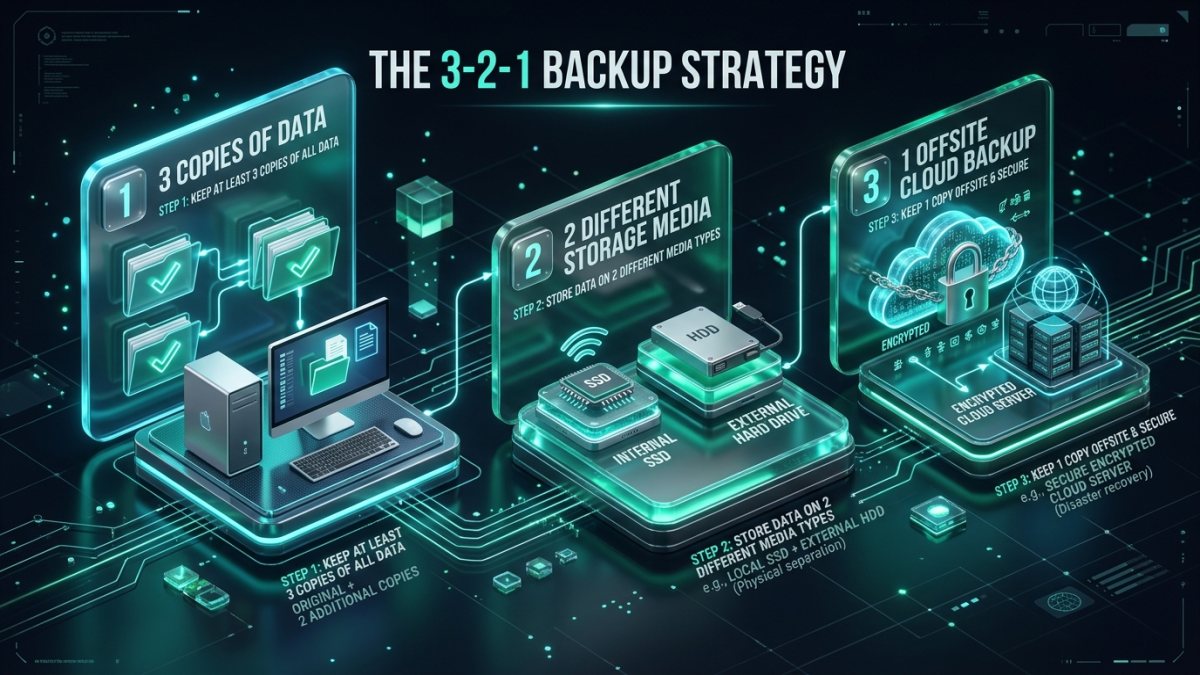
- 3 Copies of Data: Maintain your primary working data on your PC plus at least two separate backup copies.
- 2 Different Media Formats: Store your backups across two distinct storage technologies (e.g., internal NVMe SSD + external physical drive or NAS).
- 1 Offsite Copy: Keep at least one copy in a geographically separate cloud data center (such as OneDrive, Google Drive, or encrypted cloud vaults) to protect against fire, theft, or localized hardware damage.
Integrating desktop shortcuts and system routines from our master collection of hidden Windows and browser tricks helps automate this maintenance schedule effortlessly.
Windows Backup Methods Comparison Matrix
The comparative matrix below illustrates key backup mechanisms, target repositories, recovery speeds, and primary protection scopes:
| Backup Method | Storage Destination | Automation Type | Recovery Speed | Primary Protection Scope |
|---|---|---|---|---|
| Windows Backup | OneDrive Cloud | Real-Time Auto Sync | Fast (Internet-dependent) | Documents, Photos, Settings, App List |
| File History | External SSD / NAS | Hourly Scheduled Snapshots | Ultra-Fast (Local Bus) | Versioned File History & Deleted Data |
| System Image | Dedicated External HDD | Manual / Monthly | Moderate (Full Image) | Complete OS State, Boot Records, Drivers |
| Manual Copy | Flash Drive / USB Stick | Manual Drag-and-Drop | Slow / High Error Risk | Selected Specific Files & Folders |
Critical Backup Habits and Mistakes to Avoid
Avoid these common misconceptions when designing your data protection plan:
- Relying on a Single USB Thumb Drive: USB flash sticks have limited read/write lifespans and are easily misplaced or corrupted. Use dedicated external SSDs or cloud accounts.
- Never Testing Data Restoration: A backup is only as good as its restore capability. Conduct a test restore every three months to verify file integrity.
- Ignoring Pre-Update Backups: Always create a fresh snapshot or restore point before executing major operating system feature updates.
- Leaving External Drives Permanently Plugged In: If your PC is struck by ransomware, malware can encrypt connected external drives. Disconnect physical backup drives when not actively transferring data, as emphasized in our cybersecurity defense guide.
Frequently Asked Questions
What is the easiest way in how to back up your windows pc automatically?
The easiest method for how to back up your windows pc is enabling the built-in Windows Backup app with OneDrive cloud sync. It continuously uploads your Desktop, Documents, and Pictures folders in real time without manual prompts.
Does Windows Backup save my installed software programs?
Windows Backup creates an inventory record of your installed Microsoft Store and desktop applications, allowing you to re-install them quickly on a new computer, but does not copy bulky program installation folders directly.
How often should I perform a full PC backup?
Personal documents and work files should be backed up continuously via cloud sync or hourly via File History. A complete System Image backup should be generated monthly or before installing major software upgrades.
What size external hard drive do I need for backups?
We recommend an external SSD or HDD with at least 1TB to 2TB of capacity—roughly double the total capacity of your internal PC drive—to accommodate version histories and multiple restore snapshots.
Summary and Long-Term Data Protection
Understanding how to back up your windows pc eliminates the anxiety of unexpected hardware crashes and malware threats. By activating real-time cloud synchronization through Windows Backup and maintaining local historical snapshots via File History, your critical files, precious memories, and work assets remain permanently protected.
Deepen your technology expertise with our foundational guides on technology for beginners, troubleshoot PC performance in our computer repair manual, or learn about our team on our About Us overview!