Most computer users spend several hours each day navigating operating systems and web browsers using standard mouse clicks and repetitive menu navigation. However, modern desktop platforms like Microsoft Windows 11 and web browsers such as Google Chrome and Microsoft Edge contain powerful built-in productivity capabilities designed to eliminate friction. Mastering hidden windows and browser tricks empowers you to streamline multitasking, organize desktop workspaces, and shave hours off your weekly computing routines.
From instant clipboard history recall and advanced window snapping layouts to lightning-fast closed tab recovery and audio controls, these built-in utilities require no extra software installation. In this comprehensive guide, we reveal 30 essential techniques that transform ordinary computer use into a high-speed, professional workflow.

Table of Contents
Why Desktop and Browser Shortcuts Matter
Every time your hands leave the keyboard to reach for a mouse, select a sub-menu, and click a button, mental focus is momentarily interrupted. Studies show that switching between keyboard and mouse thousands of times per day contributes to cognitive fatigue and repetitive strain. By adopting keyboard hotkeys and native window management, you retain full creative momentum.
As explored in our foundational guide on technology for beginners and our practical playbook on common computer problems and how to fix them, understanding how operating systems interact with client applications is the foundation of digital efficiency.
Essential Windows System and Window Management Tricks
Windows provides extensive window management capabilities that allow users to organize multiple running programs without manual resizing:
1. Open the Clipboard History (Windows + V)
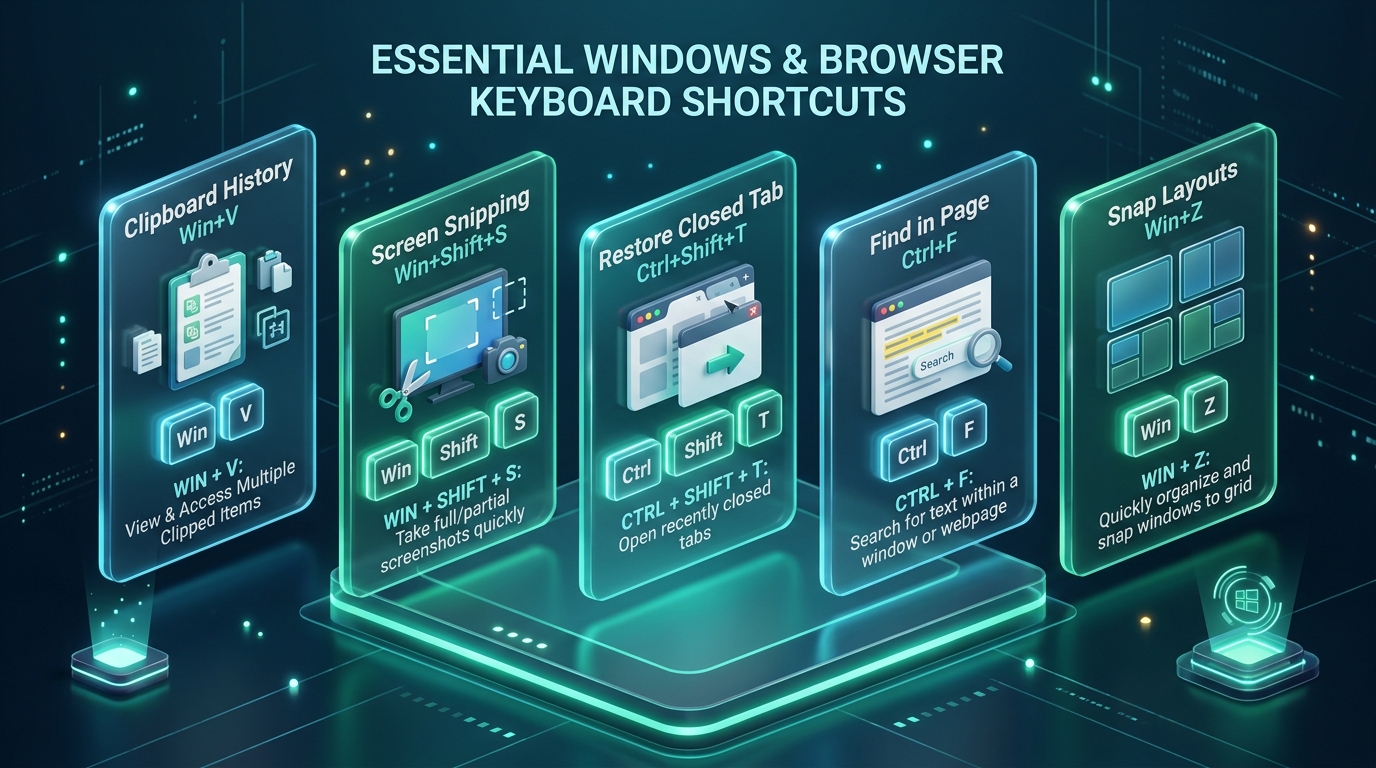
Standard copy-and-paste only remembers your last copied item. Pressing Windows + V activates Windows Clipboard History, allowing you to access the last 25 copied snippets of text, code, tables, and images. You can also pin frequently used email templates or signatures for instant recall.
2. Quickly Lock Your Computer (Windows + L)
Whenever stepping away from your desk at work or in public spaces, pressing Windows + L immediately locks your workstation, shielding sensitive documents from unauthorized eyes. Learn more privacy safeguards in our digital privacy guide.
3. Open File Explorer Instantly (Windows + E)
Instead of hunting for the folder icon on your taskbar, press Windows + E to open a fresh File Explorer window instantly. In Windows 11, File Explorer also supports multi-tab browsing (Ctrl + T) to reduce desktop clutter.
4. Open the Run Command Dialog (Windows + R)
Pressing Windows + R brings up the Run dialogue. Typing quick abbreviations like calc (Calculator), notepad, cmd, or msconfig launches system utilities in milliseconds.
5. Arrange Windows Side by Side (Windows + Left / Right Arrows)
Comparing two documents or spreadsheets is effortless: select the active window and press Windows + Left Arrow or Windows + Right Arrow. Windows will snap the application to exactly half the display and prompt you to choose the secondary window.
6. See More Snap Layouts (Windows + Z)
Hovering over any window maximize button or pressing Windows + Z reveals Windows 11 Snap Layout grids. You can arrange three or four windows simultaneously across dual-column, tri-split, or quadrant arrangements.
Advanced Clipboard, Search, and Multitasking Hacks
Maximize daily efficiency with these proven desktop and screen-capture capabilities according to official Microsoft Windows Keyboard Shortcuts documentation:
7. Take a Selected-Area Screenshot (Windows + Shift + S)
Pressing Windows + Shift + S activates Snipping Tool overlay. Drag a rectangular box over any area of your screen; the image is immediately copied to your clipboard and ready to paste into chat or email.
8. Record Part of Your Screen (Windows + Shift + R)
Need to demonstrate a software bug or record a video tutorial? Windows Snipping Tool supports direct video capture of selected screen areas without third-party recording utilities.
9. Open Task Manager Directly (Ctrl + Shift + Esc)
Bypass the full-screen Ctrl + Alt + Delete menu. Pressing Ctrl + Shift + Esc directly launches Task Manager on your active desktop, allowing you to instantly diagnose memory bottlenecks.
10. Switch Between Applications Faster (Alt + Tab)
Holding Alt and pressing Tab displays an interactive carousel of active programs. Pressing Tab repeatedly cycles through windows, while releasing keys switches focus seamlessly.
11. Show the Desktop Instantly (Windows + D)
When you have dozens of open windows and need to access desktop files, press Windows + D to minimize all apps at once. Pressing it again restores all open windows to their previous positions.
12. Use Voice Typing and Dictation (Windows + H)
Pressing Windows + H launches Microsoft’s online voice dictation engine. Speak naturally to dictate emails, documents, or notes with automated punctuation support.
Browser Tab Mastery and Navigation Tricks
Modern web research demands sophisticated browser management. Master these web navigation shortcuts as documented in the Google Chrome Keyboard Shortcuts directory:
13. Reopen a Closed Browser Tab (Ctrl + Shift + T)
Accidentally closed an essential webpage? Press Ctrl + Shift + T in Chrome, Edge, or Firefox. The browser instantly restores your closed tab with its entire browsing history intact.
14. Jump Directly to the Address Bar (Ctrl + L or Alt + D)
Never click your mouse inside the URL address box. Pressing Ctrl + L instantly highlights the entire web address, allowing you to type a new search query or copy the link immediately.
15. Search Across Open Browser Tabs (Ctrl + Shift + A)
When juggling 30 or more open tabs, press Ctrl + Shift + A to open Chrome’s Tab Search menu. Type any keyword to find and jump to the right tab within seconds.
16. Pin Important Browser Tabs
Right-click daily work tabs (such as Gmail, Slack, or project management dashboards) and select Pin Tab. Pinned tabs shrink into neat favicons on the left and cannot be closed accidentally.
17. Save All Open Tabs into a Bookmark Folder (Ctrl + Shift + D)
Before closing your browser at the end of a research session, press Ctrl + Shift + D. The browser saves all currently open tabs into a single dated bookmark folder for instant recovery later.
Media, Display, and Accessibility Shortcuts
Enhance multi-monitor setups and multimedia consumption with these essential shortcuts:
18. Move Windows Between Multiple Monitors (Windows + Shift + Left / Right)
If you work with dual or triple displays, dragging windows with a mouse is slow. Select a window and press Windows + Shift + Left Arrow or Right Arrow to instantly teleport the application to the adjacent screen.
19. Watch Video in Picture-in-Picture Mode
Right-click twice on any web video (such as YouTube) and choose Picture in Picture. The video pops out into a floating, resizable overlay window that remains on top while you work in other apps.
20. Open the Emoji and Symbol Keyboard (Windows + .)
Pressing Windows + . (Period) opens the native Windows emoji, kaomoji, and special character panel. You can insert mathematical symbols (±, ∞, °), currency signs, and emojis into any text field.
Master Keyboard Shortcuts and Productivity Matrix
The comparative matrix below outlines key keyboard shortcuts, their primary software scope, and typical workflow benefits for users adopting hidden windows and browser tricks:
| Shortcut Hotkey | System Scope | Functionality | Productivity Benefit |
|---|---|---|---|
| Win + V | Windows OS | Clipboard History | Access last 25 copied items & pinned text |
| Win + Shift + S | Windows OS | Snipping Tool | Instant precision screenshot to clipboard |
| Ctrl + Shift + T | Web Browser | Reopen Closed Tab | Instant recovery of accidentally closed tabs |
| Win + Left / Right | Windows OS | Snap Windows | Instant 50/50 split-screen multitasking |
| Ctrl + Shift + Esc | Windows OS | Task Manager | Bypass lock screen to kill frozen tasks |
| Ctrl + L / Alt + D | Web Browser | Address Bar Focus | Instant search without mouse navigation |
| Win + Shift + Arrows | Multi-Monitor | Move Display Window | Teleport window across connected monitors |
Frequently Asked Questions
What are the most important hidden windows and browser tricks for beginners?
The most important hidden windows and browser tricks for beginners include Clipboard History (Windows + V), Snipping Tool (Windows + Shift + S), Reopen Closed Tab (Ctrl + Shift + T), and Split-Screen Window Snapping (Windows + Arrow Keys).
Is Clipboard History enabled by default in Windows?
On fresh Windows installations, press Windows + V once and click Turn on to enable clipboard history. Once activated, it saves copied text and images across all applications automatically.
Do browser shortcuts work across Chrome, Edge, and Firefox?
Yes. Industry-standard web browsers share universal shortcuts for tab management, address bar focus (Ctrl + L), page searching (Ctrl + F), and reopening closed tabs (Ctrl + Shift + T).
How can I mute a noisy browser tab quickly?
Look for the speaker icon on the tab title bar and click it directly to mute the tab, or right-click the tab and select Mute site.
Summary and Workflow Optimization
Adopting hidden windows and browser tricks transforms your daily interaction with technology. Rather than attempting to memorize dozens of hotkeys overnight, choose three or four shortcuts that match your most common tasks—such as Win + V for clipboard history and Ctrl + Shift + T for tab recovery—and practice them until they become second nature.
Deepen your tech mastery with our guides on technology for beginners, troubleshoot PC performance in our computer troubleshooting manual, or explore mobile features in our smartphone optimization guide!