Your Google Account functions as the master key to your entire digital life. A single Google identity connects your private Gmail conversations, confidential Google Drive documents, family Google Photos memories, YouTube preferences, financial billing methods, and synced browser passwords. If an unauthorized attacker gains access to your credentials, the consequences extend far beyond email loss. This actionable, in-depth guide on how to secure your google account provides step-by-step security hardening strategies to fortify your digital footprint against modern cyber threats.
Whether you are configuring a new profile or safeguarding an existing identity, understanding how to secure your google account with multi-factor authentication, biometric passkeys, proactive device auditing, and phishing defense guarantees comprehensive protection.

Table of Contents
Why Google Account Security Is Your Top Digital Priority
Modern consumers and enterprise professionals rely on Google as a central identity provider. Beyond simple email delivery, your Google Account houses:
- Confidential Communications: Inbound and archived Gmail threads containing sensitive contracts, tax receipts, and personal notes.
- Cloud Storage Libraries: Gigabytes of Google Drive documents and Google Photos synchronized across devices.
- Password Vaults: Google Password Manager credentials for hundreds of third-party websites and banking portals.
- Single Sign-On (SSO) Access: “Sign in with Google” authorizations granting direct access to external SaaS applications.
As detailed in our primer on cybersecurity defenses and digital privacy protection, leaving your primary account unprotected exposes your entire digital ecosystem to credential stuffing, identity theft, and automated malware attacks.
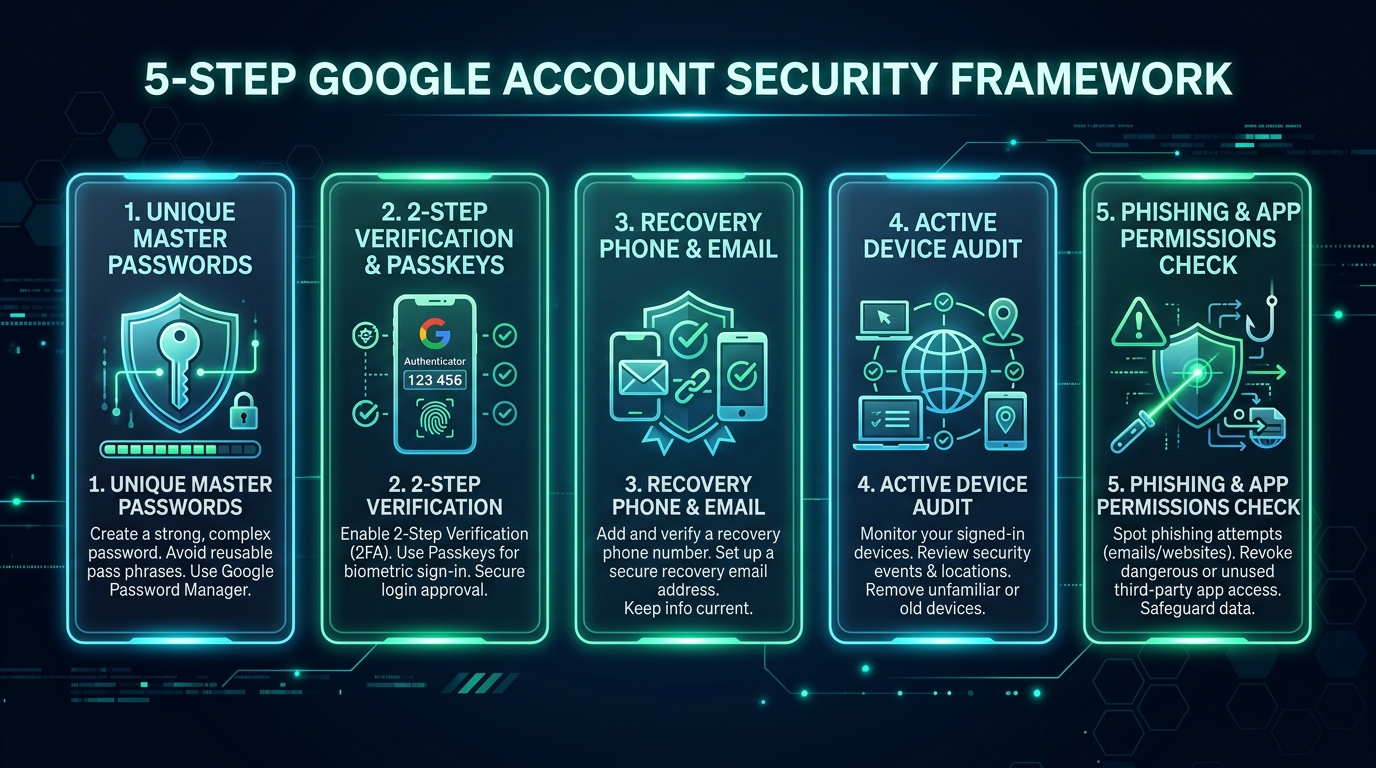
Step-by-Step Guide: How to Secure Your Google Account
Executing a comprehensive security hardening plan ensures your personal documents, payment methods, and private photos remain completely inaccessible to bad actors. Follow the core steps below to safeguard your profile.
Step 1: Create a Strong and Truly Unique Password
The first line of defense in protecting your identity is establishing a cryptographically robust password. Never reuse passwords across multiple online platforms. If an unrelated forum or shopping site suffers a data leak, automated attack scripts will immediately test those leaked credentials against Google servers.
Avoid obvious patterns such as birth dates, family names, pet names, or sequential numbers. Instead, utilize a randomized passphrase consisting of at least 16 characters with mixed uppercase letters, numbers, and special symbols generated by a reputable password manager.
Step 2: Enable 2-Step Verification (Multi-Factor Authentication)
Enabling 2-Step Verification (2FA) is the single most effective defense against unauthorized logins. With 2FA activated, logging into your Google Account requires both your master password and a secondary physical verification factor.
According to official documentation from Google Account Help, 2-Step Verification blocks up to 99% of automated credential-stuffing attacks. To configure 2FA:
- Navigate to your Google Account at
myaccount.google.com. - Select the Security tab from the navigation sidebar.
- Under How you sign in to Google, click 2-Step Verification.
- Follow the setup prompts to link your primary mobile device for Google Prompts or configure a hardware security key.
Step 3: Configure Biometric Passkeys on Personal Devices
Passkeys represent the next evolutionary leap in authentication technology. Built on FIDO Alliance standards, a passkey replaces passwords with public-key cryptographic key pairs tied directly to your physical hardware (such as your smartphone fingerprint scanner, Face ID, or laptop Windows Hello sensor).
Because passkeys are cryptographically bound to specific domains, they are completely immune to online phishing attacks. A malicious phishing webpage cannot intercept or harvest a passkey. For full configuration steps on mobile devices, consult our comprehensive smartphone guide.
Step 4: Update Recovery Phone Number and Recovery Email
If you forget your master password or lose your primary phone, Google relies on your backup recovery channels to verify your identity. Keeping your recovery information updated is vital for complete account protection:
- Recovery Phone: Provide an active mobile phone number that you personally own and operate. Ensure carrier SIM-lock protections are active to prevent SIM-swap fraud.
- Recovery Email: Specify a secure secondary email address hosted on an independent provider. Never use a recovery email that routes back into the same Google Account.
Step 5: Audit Active Devices and Terminate Unfamiliar Sessions
Over months of daily computing, you may sign into your Google profile on loaner laptops, school computers, work tablets, or older phones. Lingering active sessions represent open backdoors.
Open Security → Your devices → Manage all devices in your Google console. Review the list of logged-in hardware, operating systems, and geographic locations. If you spot an old device or an unfamiliar browser session, click Sign out immediately to revoke all access tokens.
Step 6: Review Recent Security Activity and Critical Alerts
Google automatically monitors authentication patterns and logs critical events—such as new logins from unfamiliar IP addresses, password changes, or recovery modification attempts. Visit the Recent security activity log regularly. If you see a login attempt from a foreign country or unrecognized device, initiate an immediate password reset.
Step 7: Manage and Restrict Third-Party App Permissions
When you connect web tools, productivity add-ons, or mobile games to your Google profile, they often request permission to read your profile info, calendar, or Google Drive files. Over time, abandoned third-party apps create serious supply-chain vulnerabilities.
Navigate to Security → Your connections to third-party apps & services. Audit all connected tools and click Delete all connections for any software you no longer actively use.
Step 8: Defend Against Phishing Scams and Fake Login Prompts
Cybercriminals frequently deploy deceptive email and SMS messages designed to mimic official Google security notifications. These fraudulent alerts often claim: “Account suspended — verify immediately” or “Storage limit exceeded — update billing.”
As emphasized by the Federal Trade Commission (FTC), never click links embedded in unsolicited warning messages. Always open a fresh browser tab and manually type myaccount.google.com to verify account status directly.
Step 9: Secure Backup Codes and Offline Recovery Keys
When you enable 2-Step Verification, Google generates a set of 10 single-use Backup Codes. If your phone is lost, submerged in water, or out of cell coverage while traveling internationally, these numerical codes provide emergency offline access.
Print out your backup codes and store them in a secure physical location (such as a home safe) or inside an encrypted offline password vault. Never save unencrypted backup codes as plain text files on desktop folders.
Step 10: Harden Your Physical Smartphone and Web Browser Security
Account security extends to the physical hardware accessing your profile. A compromised smartphone or malware-infected browser can capture session cookies and bypass two-factor verification entirely. Review our actionable guidance on mobile security alerts and learn computing fundamentals in our technology for beginners overview.
Google Account Security Methods Comparison Matrix
The table below compares the primary security mechanisms available for protecting your Google profile:
| Security Layer | Primary Function | Phishing Resistance | Ease of Daily Use | Recommended Setup |
|---|---|---|---|---|
| Unique Master Password | First-tier authentication | Low (vulnerable to fake pages) | High (with Password Manager) | Mandatory (16+ chars) |
| Google Prompt (2FA) | On-phone login verification tap | Medium | Very High | Highly Recommended |
| Authenticator App (TOTP) | Time-based 6-digit rolling code | Medium | High | Excellent Backup |
| Biometric Passkey | FIDO2 public-key cryptography | Maximum (100% Phishing Proof) | Instant (Fingerprint/Face) | Best Modern Method |
| Hardware Security Key | Physical FIDO USB/NFC token (YubiKey) | Maximum (Enterprise Grade) | High | Best for High-Risk Users |
| Offline Backup Codes | Emergency account recovery | N/A (Single Use Offline) | Manual | Mandatory Safeguard |
Emergency Protocol: What to Do If Your Account Is Compromised
If you suspect an unauthorized intruder has accessed your Google profile, execute these emergency recovery steps immediately:
- Change Your Google Password: Immediately create a fresh, randomized 16+ character password. Changing the master password instantly revokes most active browser sessions.
- Terminate All Other Sessions: Go to Your devices and select Sign out of all sessions.
- Audit Recovery Channels: Check your recovery phone number and recovery email to ensure the intruder did not substitute their own contact details.
- Inspect Gmail Forwarding Filters: Hackers frequently create hidden forwarding rules in Gmail settings to intercept financial verification codes. Open Gmail → Settings → Forwarding and POP/IMAP and delete any unauthorized forwarding addresses.
- Check Linked Financial Methods: Review Google Pay purchase history and remove compromised payment cards.
Complete Google Account Security Checklist
Use this practical checklist to verify that you have hardened every aspect of your account security:
- ☑ Password Strength: Unique 16+ character master passphrase managed in a secure password manager.
- ☑ 2-Step Verification: Activated across mobile prompts or authenticator apps.
- ☑ Passkey Setup: Biometric passkey generated on your primary phone and personal computer.
- ☑ Recovery Channels: Verified recovery phone number and independent recovery email address.
- ☑ Device Audit: All obsolete or unrecognized devices signed out from the Google dashboard.
- ☑ Third-Party Apps: Unused application permissions reviewed and revoked.
- ☑ Backup Codes: 10 single-use emergency recovery codes printed and safely stored offline.
- ☑ Google Security Checkup: Completed the automated Google Security Checkup tool.
Frequently Asked Questions
Summary and Ongoing Account Protection
Protecting your Google profile does not require complex technical expertise. By applying the practical steps detailed in this guide on how to secure your google account—from 2-Step Verification and biometric passkeys to session pruning and phishing awareness—you build an impenetrable digital fortress around your online identity.
Take ten minutes today to review your security settings, generate offline backup codes, and purge inactive third-party applications. Disciplined security hygiene ensures your data remains private, protected, and accessible only to you.
Deepen your cybersecurity knowledge: explore our comprehensive guide on cybersecurity defense principles, master device safety with our complete smartphone guide, or visit the Osmanix About Us overview to learn about our technical mission!