Upgrading to a brand-new smartphone is an exhilarating experience, but migrating your accumulated digital life—thousands of high-resolution family photos, extensive contact databases, sensitive financial records, two-factor authenticator tokens, and years of WhatsApp message histories—can feel daunting. Fortunately, modern mobile operating systems offer powerful built-in utilities designed to streamline migration. This definitive guide explains exactly how to transfer data to a new phone seamlessly without losing a single file or message.
Whether you are moving between identical ecosystems (Android to Android or iPhone to iPhone) or making the leap across platforms, following structured migration procedures ensures your applications, settings, and personal files move with complete security and zero data loss.

Table of Contents
Golden Rule: Never Reset Your Old Device Prematurely
The single most critical rule of smartphone migration is: never wipe, factory reset, or trade in your old phone until you have verified every critical app and account on your new device. Multi-factor authentication apps, banking authorization tokens, and private chat encryption keys frequently require identity verification from your existing hardware before granting access to a new terminal.
Keep your old phone charged, connected to Wi-Fi, and sitting on your desk for at least 48 hours after setting up your device to resolve any unexpected verification prompts.
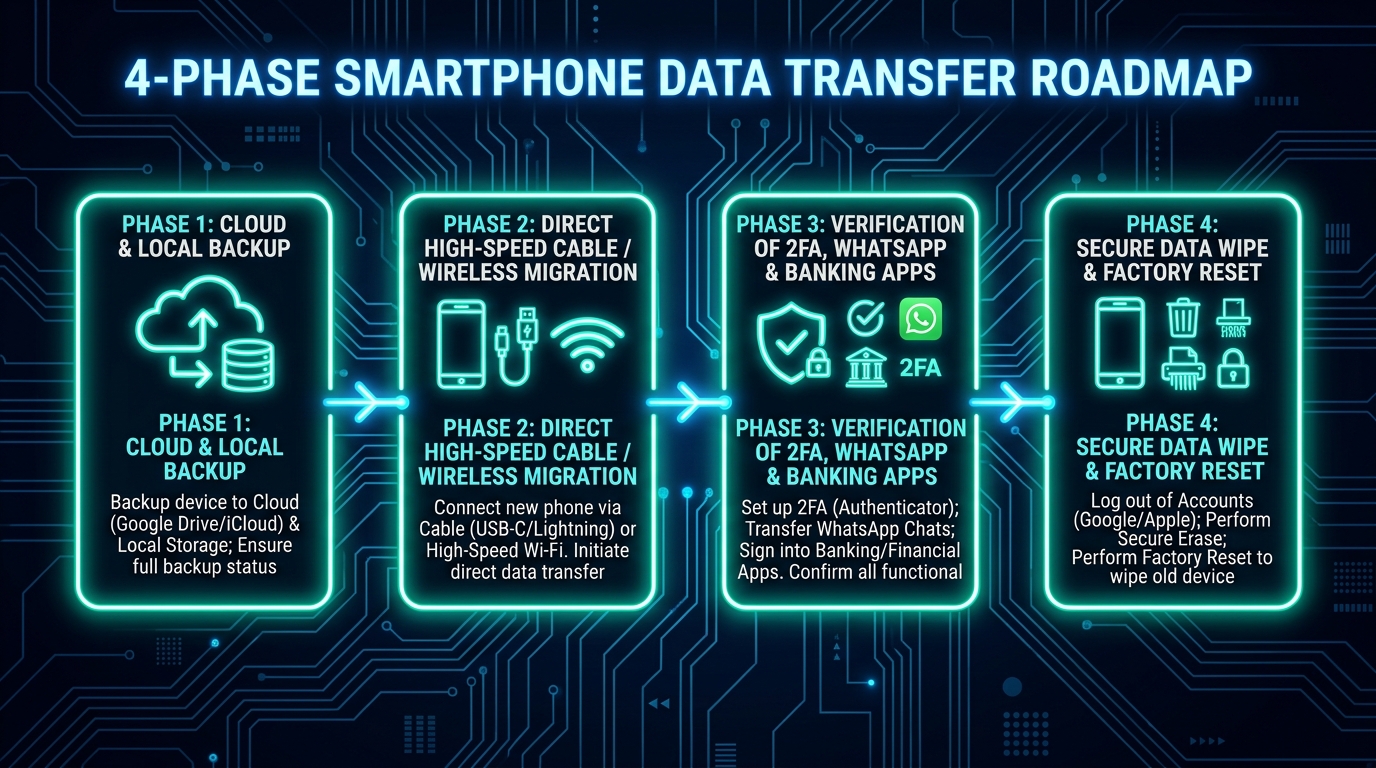
Essential Pre-Transfer Preparation Checklist
Before launching the migration wizard, complete these vital preparatory measures:
- Charge Both Devices to at Least 80%: Large media transfers can take anywhere from 20 minutes to over 2 hours. Plug both handsets into power supplies to prevent mid-transfer shutdowns.
- Ensure Stable High-Speed Wi-Fi: Connect both devices to a reliable 5 GHz Wi-Fi network rather than public or metered connections.
- Know Your Master Account Credentials: Have your Google Account, Apple ID, and device PINs ready. If you need to refresh your security credentials, review our guide on how to secure your Google account.
- Update Firmware on Both Phones: Operating system updates ensure cross-device protocol compatibility, as recommended in our smartphone guide and mobile security alert.
Step 1: Create a Fresh Cloud and Local Backup
Never rely solely on peer-to-peer device transfers. Creating an isolated cloud backup acts as your digital insurance policy if a physical cable disconnects or an unexpected packet error occurs:
- On Android: Open Settings → Google → All services → Backup and tap Back up now. According to official instructions from Google Android Help, this captures app data, SMS history, contacts, and system settings.
- On iPhone: Navigate to Settings → [Your Name] → iCloud → iCloud Backup and initiate an immediate sync.
Step 2: Audit Storage Capacity on Both Devices
Before starting, compare used storage. If your old handset contains 220 GB of data and your new phone has a 256 GB capacity, the migration will proceed smoothly. However, if your old phone exceeds the internal capacity of the new model, you must offload large video files to cloud storage or purge obsolete downloads before initiating the transfer.
Step 3: Transfer Data Between Two Android Devices
Migrating between modern Android smartphones (such as Samsung Galaxy, Google Pixel, or OnePlus) is effortless using Android’s native Fast Pair utility:
- Power on the new Android handset and select your language.
- When prompted to “Copy apps and data”, tap Next.
- Connect both phones using a high-speed USB-C to USB-C cable (or select “No cable? Transfer wirelessly”). Direct cable transfer is up to 3x faster and less prone to wireless interference.
- Unlock the old phone and tap Trust / Copy.
- Select the checkboxes for Apps, Contacts, Call History, Photos, Music, and Device Settings, then tap Copy.
Step 4: Transfer Data Between Two iPhones (Apple Quick Start)
Apple’s Quick Start feature creates an exact bit-for-bit clone of your existing iPhone onto your new model:
- Turn on Bluetooth and Wi-Fi on your current iPhone and place it directly beside the new iPhone.
- The Quick Start card will appear on your current device asking: “Set Up New iPhone”. Tap Continue.
- Hold your current iPhone over the new device to scan the circular animated hologram using your camera.
- Enter your existing passcode on the new device, configure Face ID, and tap Transfer Directly from iPhone (as documented on Apple Support).
Step 5: Transfer Data from iPhone to Android (Cross-Platform)
Switching from an iPhone to an Android device requires specific cross-platform handshakes:
- Turn on your new Android phone and select “Switch from iPhone or iPad” during setup.
- Connect both handsets using a Lightning-to-USB-C or USB-C-to-USB-C cable.
- On the iPhone, tap Trust when prompted.
- Scan the on-screen QR code to migrate contacts, calendar entries, photos, videos, DRM-free music, and free matching Google Play apps.
- Crucial Step: Turn off iMessage and FaceTime in iPhone settings before switching your cellular connection to prevent SMS delivery failures from iPhone contacts.
Step 6: Transfer Data from Android to iPhone (Move to iOS)
When migrating from Android to an iPhone, utilize Apple’s official Move to iOS application:
- Download and install Move to iOS from the Google Play Store on your Android phone.
- On the new iPhone, advance through setup until reaching the Apps & Data screen, then tap Move Data from Android.
- A 6-digit or 10-digit code will appear on the iPhone. Enter this code into the Android app.
- The iPhone creates a private peer-to-peer Wi-Fi network. Select your data categories (messages, contacts, camera roll, WhatsApp chats) and tap Continue.
Step 7: WhatsApp and Messaging Chat Migration
WhatsApp uses end-to-end encrypted databases that do not automatically transfer through standard operating system backups. To ensure 100% chat history preservation:
- Same Platform (Android → Android or iPhone → iPhone): Open WhatsApp → Settings → Chats → Chat Backup → tap Back Up. Alternatively, use Settings → Chats → Transfer Chats to beam data locally via QR code.
- Cross Platform (iPhone ↔ Android): Use the native transfer utilities during initial device setup. Connect via USB-C cable and follow the official WhatsApp in-migration prompt.
Step 8: Multi-Factor Authentication and Banking Apps Setup
For security reasons, financial institutions and authenticator applications (such as Google Authenticator, Microsoft Authenticator, and mobile banking apps) do not migrate credentials silently. Open your authenticator app on the old phone, select Transfer accounts / Export accounts, and scan the export QR code on your new device before wiping the old hardware.
Step 9: Transfer Physical SIM or Digital eSIM Profiles
To restore cellular calling and mobile data:
- Physical Nano-SIM: Power off both devices, remove the SIM tray using the ejector tool, insert the nano-SIM into the new phone, and power on.
- Digital eSIM: Modern handsets allow carrier eSIM transfer directly through device settings (Settings → Cellular → Set Up Cellular → Transfer from Nearby Phone). For carrier-locked devices, log into your mobile carrier app to download the eSIM profile.
Step-by-Step Guide: How to Transfer Data to a New Phone Matrix
This comparison table outlines the optimal migration strategy based on your device scenario when learning how to transfer data to a new phone:
| Migration Scenario | Recommended Transfer Method | Transfer Speed | Transfers App Logins? | Best Practice Note |
|---|---|---|---|---|
| Android to Android | Direct USB-C Cable Transfer | Ultra-Fast (~400 MB/s) | Partial (Security re-auth) | Use original cable; keeps home screen layout |
| iPhone to iPhone | Apple Quick Start (Local Wireless/Cable) | Very Fast | Yes (Most apps remain signed in) | Keep devices within 2 inches during pairing |
| iPhone to Android | Google Switch App / Cable Setup | Fast | No (Download matching apps) | Must disable iMessage prior to SIM swap |
| Android to iPhone | Apple Move to iOS App | Moderate | No (Matches free App Store apps) | Keep Android phone on active screen |
| Emergency Cloud Restore | Google One / Apple iCloud Backup | Depends on Wi-Fi ISP | No | Ideal if old handset is broken or lost |
Post-Migration Verification Protocol
Before considering the migration complete, execute this 10-point operational sanity test on your new device:
- ☑ Voice Calls: Place and receive a test phone call.
- ☑ SMS & MMS: Send and receive standard text messages and media attachments.
- ☑ Photo Gallery: Confirm high-resolution photos and older albums have synced completely.
- ☑ Contact List: Verify phone numbers, email addresses, and contact notes.
- ☑ WhatsApp & Messaging: Confirm all chat threads, voice notes, and media appear.
- ☑ Banking & Financial Portals: Log into primary banking apps and verify biometric login.
- ☑ Two-Factor Authenticator: Verify 6-digit rolling codes generate accurately.
- ☑ Cloud Backup Status: Confirm new phone has initiated its first automated cloud backup.
- ☑ Find My Device / Find My: Verify geolocation tracking is active.
- ☑ Bluetooth & Peripherals: Pair smartwatches, wireless earbuds, and vehicle infotainment.
Step 10: Secure Factory Reset and Data Sanitization
Only after completing the verification protocol and operating your new handset for 48 hours should you sanitize the old hardware. Sign out of your Apple ID or Google Account, disable activation locks, and execute a cryptographic Factory Data Reset before selling, trading in, or recycling your device.
Troubleshooting Common Data Transfer Failures
If your device migration stalls or encounters errors, apply these proven engineering solutions:
- Transfer Freezes at 99%: Large video libraries or corrupted application caches can cause extended background indexing. Wait 20 minutes before interrupting. If frozen, restart both devices and select transfer by category (media first, apps second).
- Cable Disconnect Errors: Ensure USB-C ports are free of lint and debris. If a cable transfer fails, switch to the direct local Wi-Fi peer-to-peer mode.
- Missing Text Messages: On Android, verify Google Messages is set as the default SMS client. On iPhone, confirm iCloud Messages sync is enabled under Apple ID settings.
Frequently Asked Questions
Summary and Enjoying Your New Smartphone
Setting up a new smartphone does not have to be a stressful ordeal. By applying the practical steps detailed in this tutorial on how to transfer data to a new phone, you ensure that every photo, contact, message thread, and app setting migrates with perfect fidelity.
Remember the golden rule: back up first, transfer over high-speed cable, verify your financial and 2FA accounts thoroughly, and only then perform a secure factory reset on your previous device. For more foundational digital skills, explore our guide on technology for beginners, master device protection in our complete smartphone guide, or visit the Osmanix About Us overview!